
Use the installed Chrome extension. This guide explains the extension workflow; it does not run the tool on this website.Check available versions and installation steps →
Before you start
Install TabParcel in desktop Chrome, sign in to your TabParcel account and check that your access period is active. Open a YouTube video you can access and have permission to download.
Check your extension version.
Regular YouTube videos require TabParcel 1.2.1 or later, available as a website ZIP. These screenshots show version 1.2.1. YouTube Shorts is supported from version 1.2.0. Check Downloads to compare the website and store versions.
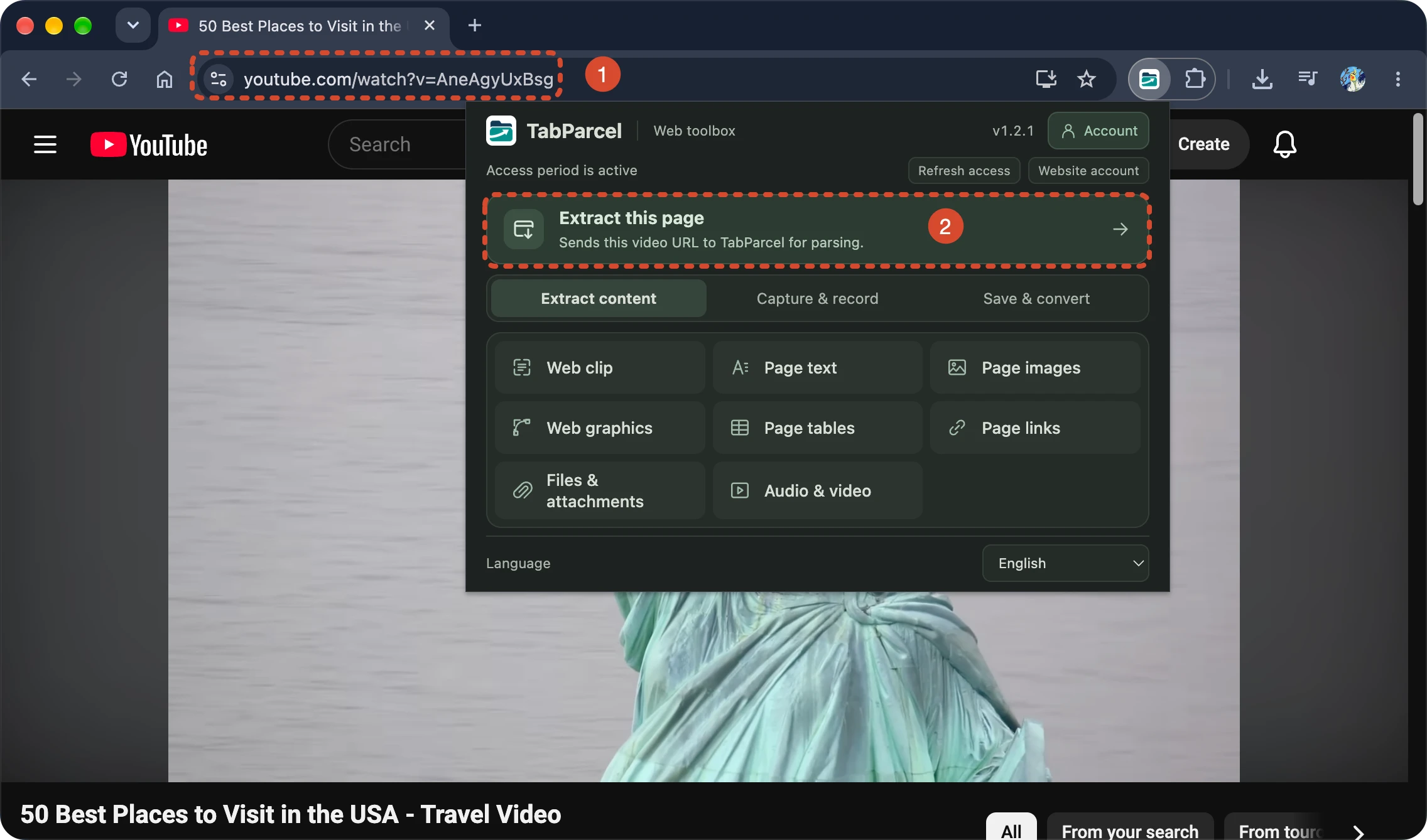
Compare available versions →All language versions of this guide share these two English-interface screenshots. The numbered markers match the steps below. Click either image to view it at full size.
Check account and access requirements →1. Open one video and extract it
Open an individual video page, marked 1 in the screenshot. A regular video uses the address pattern below. Replace VIDEO_ID with the video’s identifier.
https://www.youtube.com/watch?v=VIDEO_ID
Keep the video tab active, open TabParcel from Chrome’s toolbar and choose Extract this page, marked 2. The selected address is sent to TabParcel for parsing; the video itself is not uploaded to TabParcel.
Wait for the Video formats workbench to reach Ready to download. A queued or parsing status means the request is still running; wait before starting another parse.
For a Short, open its individual Shorts page and use the same extraction action. Its address follows this pattern:
https://www.youtube.com/shorts/VIDEO_ID
2. Choose the formats you need
The workbench lists alternative formats for one video. In this example, 64 found means format choices, not 64 different videos. Counts, resolutions and file sizes vary by video.
- Start with the recommended combination. The screenshot shows one 1080p MP4 video track and one WebM audio track selected together.
- Use Show all formats to compare alternatives. Filter by media type, file format or audio language, then check resolution, frame rate, codec and estimated size on each card.
- Read the track labels: Video only has no sound; Audio only has no picture. If a format includes both video and audio, it can be downloaded as one file. MP4 alone does not mean that sound is included.
You can keep the recommended pair, choose another combination, or select just an audio track. Higher resolution can mean a much larger download; choose a format your player can open.
3. Select your files and download
- Review the currently shown formats. To select those visible choices together, use Select filtered files, marked 1. You do not need to select every available format.
- Check the selected count and any selection outside the current filter. To start over, clear the selection, set your filters, then select the files you want.
- Choose Download selected, marked 2. The example downloads two separate files: one video and one audio track. Check Chrome’s downloads list for both.
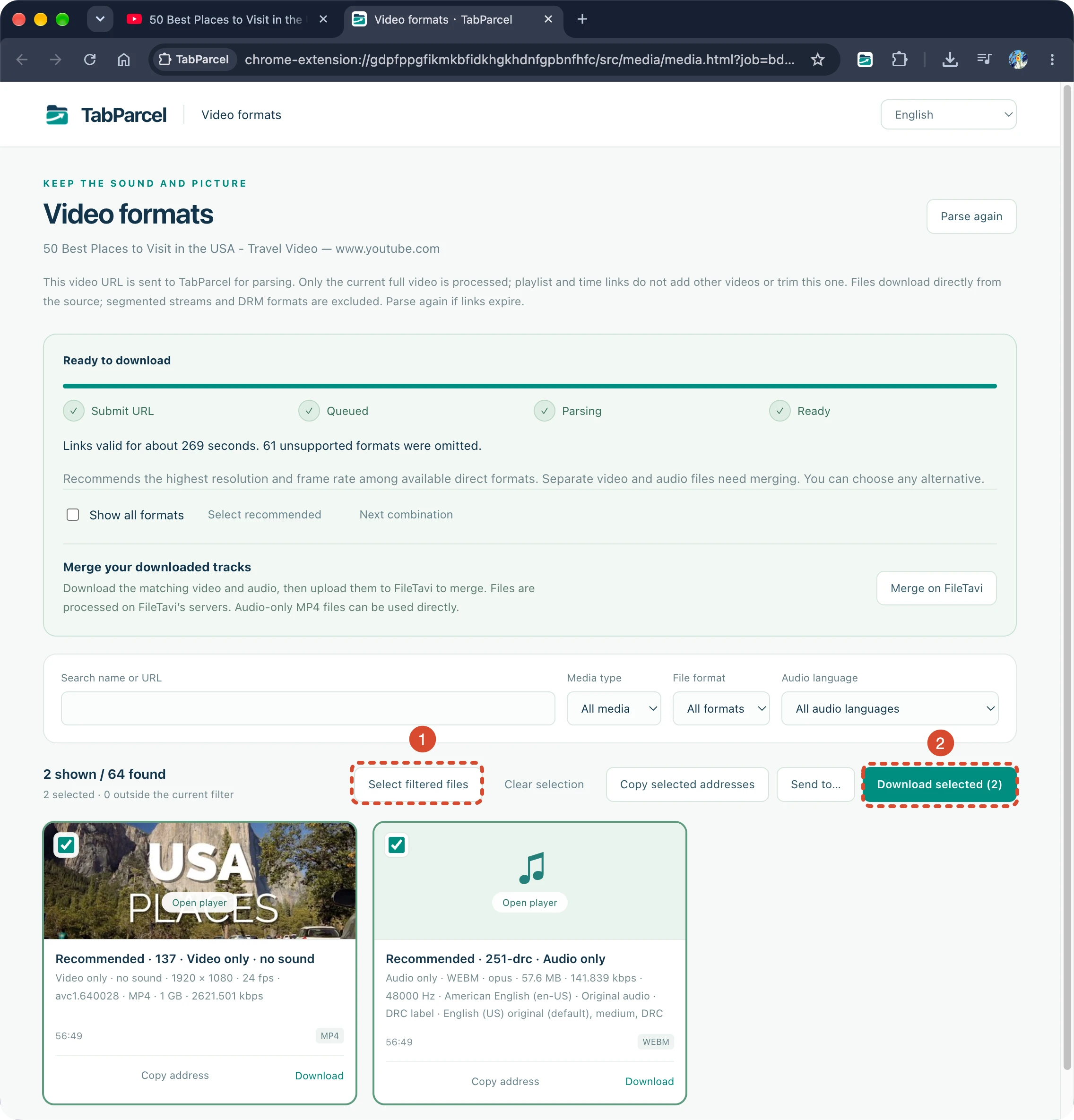
Filters and selection are different.
Select filtered files acts on the current filtered results. Changing a filter can leave earlier selections outside the current view. Check the total selected count before downloading to avoid unwanted alternatives.
4. Merge separate tracks when you want sound and picture
A video-only file stays silent when opened by itself. Download its matching audio track as well, then use a compatible media tool to merge the two. Download selected saves the files separately; TabParcel does not automatically merge them.
The pictured workbench also offers Merge on FileTavi. This optional third-party service requires you to upload your downloaded tracks and processes them on FileTavi’s servers. Check its supported formats, size limits and privacy terms before uploading.
If you only want the audio, download an audio-only format that your player supports. You do not need to merge it with a video file.
Refresh expired links and understand the limits
- Direct download links are short-lived. If the countdown has ended or a link fails, choose Parse again, wait for fresh results, then review and select your files again.
- Chrome controls download prompts and the save folder. Check completed downloads before retrying, especially for large files or a two-track selection.
- Only the individual video is parsed. Playlist parameters do not add other videos, and a timestamp in the address does not trim the downloaded file.
- Some formats are omitted because this workflow cannot download them directly, including segmented streams and DRM-protected media. An omitted-format count is not a count of failed downloads. Unavailable or restricted videos may not return usable formats.