
Use the installed Chrome extension. This guide explains the extension workflow; it does not run the tool on this website.Add to Chromeor follow the installation steps.
Before you start
- Install TabParcel in desktop Chrome, then sign in to your TabParcel account and check that your access period is active.
- Open a post you can view in Instagram. If Instagram asks you to sign in, do that in the Instagram tab first.
These screenshots show TabParcel 1.1.1 and one post with four photos. The number and media types depend on the post you open.
Check account and access requirements →1. Open the specific post and extract it
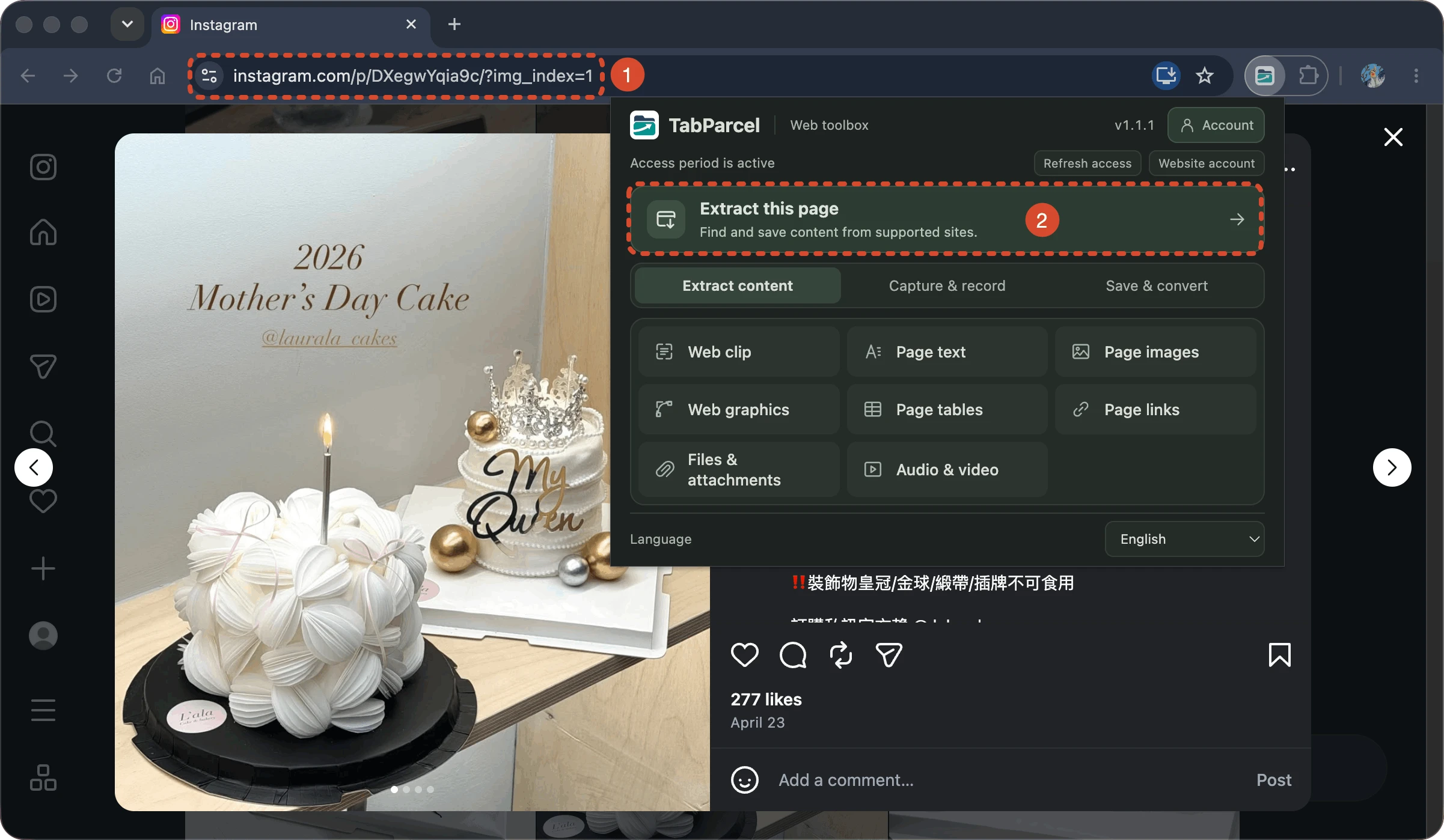
Open the individual post, rather than leaving Instagram on its home feed or a profile grid. The first screenshot marks the post address with 1.
Keep that tab active, open TabParcel from Chrome’s toolbar and choose Extract this page, marked 2. Wait for the Instagram post media results to open.
2. Select every result and download
- To include everything found in this post, clear the search box and leave both Media type and File format set to their all-items options.
- Choose Select filtered files, marked 1. Check that the selected count matches the found count. The example shows four found and four selected.
- Choose Download selected, marked 2. The number on the button should match your selection. Check Chrome’s downloads list for the saved files.
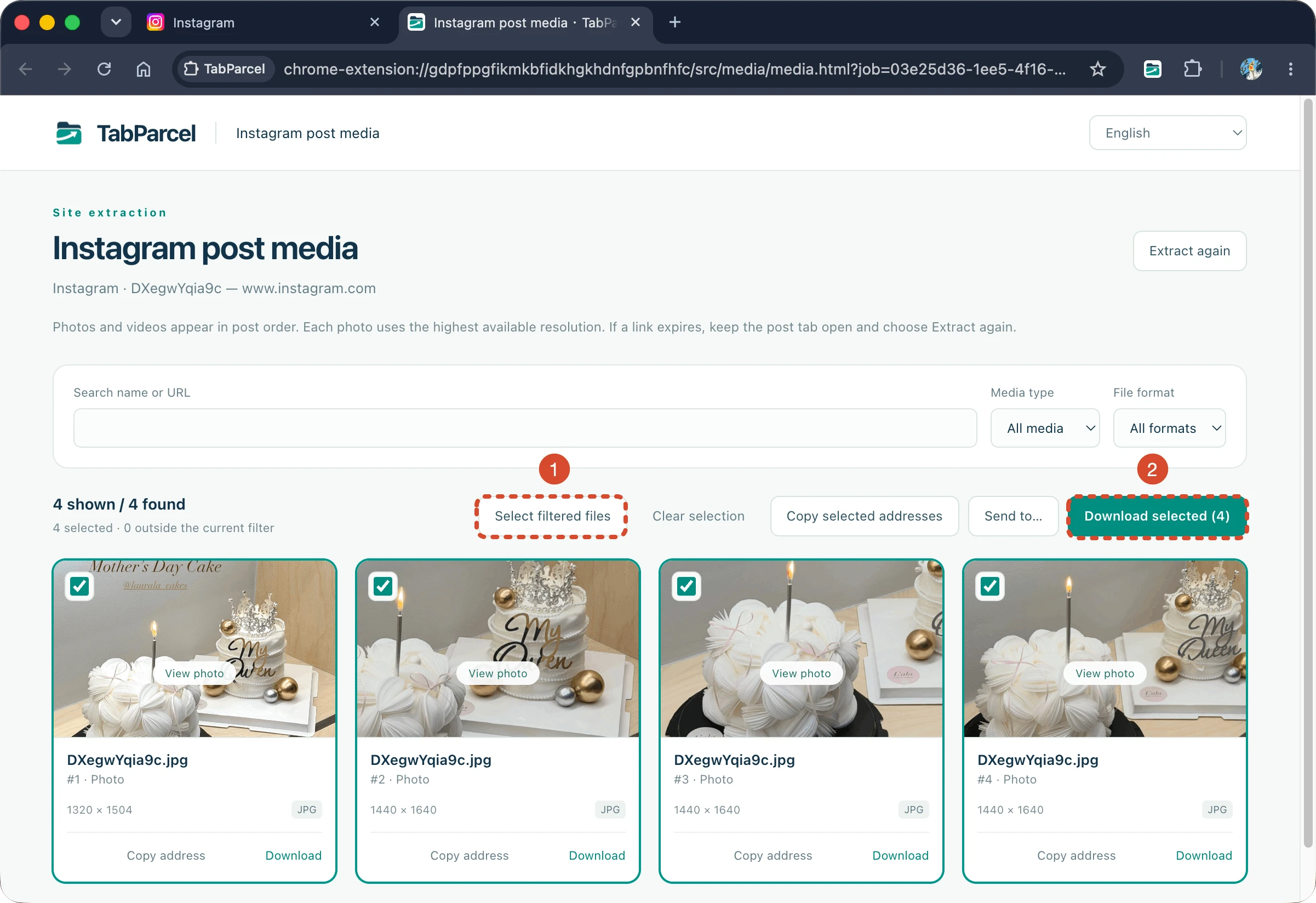
Selection follows your filters.
Select filtered files selects the current filtered results. If you leave a search or media filter active, you may download only part of the post. Clearing filters alone does not select the remaining items; use the selection button again.
Other supported Instagram addresses
TabParcel also supports individual Reels, loaded profile grids, Stories and Highlights. Check the version requirements below.
Single Reel links require TabParcel 1.1.2 or later.
Both single-Reel address patterns below use the same extraction, selection and download steps shown above.
Stories and Highlights require TabParcel 1.1.3 or later.
Open a Stories or Highlights page you can view in Instagram, let the media load, then use Extract this page and review the results before selecting and downloading.
| Page type | Example address | What is extracted |
|---|---|---|
| Individual post or Reel | https://www.instagram.com/p/POST_ID/https://www.instagram.com/reel/REEL_ID/https://www.instagram.com/reels/REEL_ID/ | Media found in that individual post or Reel. |
| Profile post grid | https://www.instagram.com/USERNAME/ | Post entries already loaded in the profile grid. |
| Profile Reels grid | https://www.instagram.com/USERNAME/reels/ | Reels entries already loaded in that profile’s Reels grid. |
| Stories | https://www.instagram.com/stories/USERNAME/ | Story media found on the opened Stories page. |
| Story highlights | https://www.instagram.com/stories/highlights/HIGHLIGHT_ID/ | Media found in the opened highlight. |
Replace USERNAME with the account’s username, HIGHLIGHT_ID with the highlight’s identifier, and POST_ID or REEL_ID with the identifier of the post or Reel.
The /reels/REEL_ID/ pattern opens an individual Reel; /USERNAME/reels/ opens a profile’s Reels grid.
For either grid, scroll to load the entries you need before choosing Extract this page. These views use entries already loaded in the browser, rather than fetching an entire account history.
Keep the original tab and its Instagram session open. Reels video links are resolved through that source tab. If more entries load, extract again to update the results.
Check the download or extract again
- If fewer items appear than expected, return to the original post, let it finish loading and use Extract again in the results tab.
- If a media link has expired or a download fails, keep the original post and its Instagram session open, then extract again to refresh the results.
- Chrome controls the save location and download prompts. Check its downloads list before retrying, so you can identify completed files.
To send the selected results to a supported cloud folder instead, follow the cloud sending guide. Send to also requires sign-in and current feature access.